Your code never leaves your computer. You don’t send it to us, we don’t see it and we don’t run it. What we receive is a file full of numbers.
A note about the screenshots: they show MetaTrader with its interface in Spanish. The arrows point at the right place, and the text below gives you the English menu name with the Spanish one in brackets, so you can match them up.
If you already know MT5, here is the whole thing in four lines
Level 1: right-click the Tester’s results tab → save the report.
Level 2: the .opt files in Tester\cache, if you ever optimised.
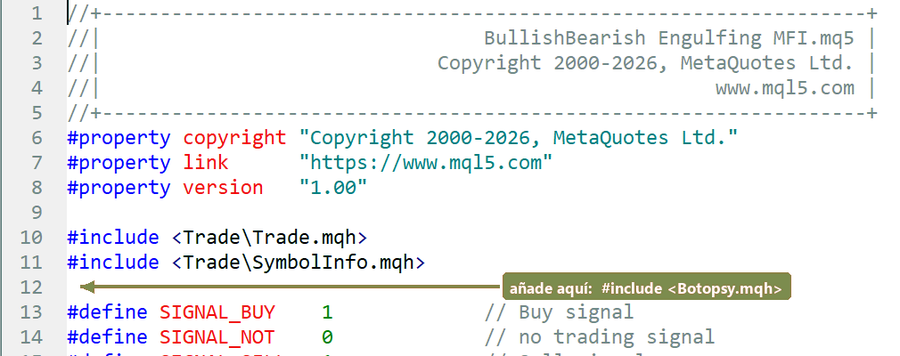
Level 3: copy Botospy.mqh into MQL5\Include, add #include <Botospy.mqh> at the top of your .mq5 and recompile.
Run a slow complete optimisation, never the genetic one, with 2–3 parameters and between 30 and 150 combinations in total.
When it finishes, send us MQL5\Files\botospy_matrix.csv.
And before anything else: if your bot writes a file while it trades, make a copy. During an optimisation it runs hundreds of times and overwrites it.
Before you start: make a backup
Stop and think for a moment about whether your bot writes any file while it trades: a trade log, a CSV, a report. If it does, make a copy before going any further.
The reason isn’t obvious: during an optimisation your bot doesn’t run once, it runs hundreds of times. If it always writes to the same place, each run overwrites the last, and you end up with the file from the final combination tried — which is not the configuration you actually use.
It happened to us with our own bot. We lost the reference file and had to regenerate it. That is why this is up here and not in a footnote.
Level 1 — The report you already have
If you only want to know what we can measure for you, this is enough to start. Nothing in the bot needs touching.
1
Open the Strategy Tester
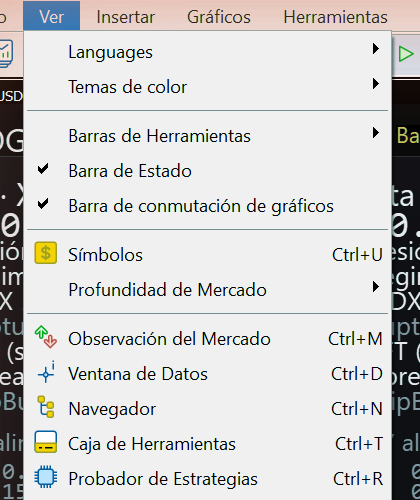
Menu View → Strategy Tester (Ver → Probador de estrategias), or the shortcut Ctrl+R. A panel opens at the bottom: everything that follows lives there, including the later levels.
While you’re there, note Symbols (Símbolos) a few lines up in that same menu. You’ll need it at the end, for the price history.
2
Send the report you already saved
If you have ever saved a backtest report, that file works for us: it carries the summary and the list of trades, which is all level 1 needs.
Don’t have it saved and can’t find how? Write to us and we’ll look at it together. The exact path changes between MT5 versions, and we would rather not put a set of clicks here that might not match your screen — if you end up wandering through menus that don’t exist, the guide is getting in your way instead of helping.
And if it’s easier, skip this level: the optimisation matrix from level 3 gives us considerably more, and that one is documented here step by step.
Level 2 — The file your MT5 already generated on its own
If you have ever optimised your bot, MT5 saved the result of every pass without you doing anything. That file is valuable to us and costs you no work at all: you just have to go and find it.
With it we work out how many times you really searched and correct your Sharpe ratio for that search. It is the difference between believing a good result and knowing how much of it is merit.
1
Go to the data folder
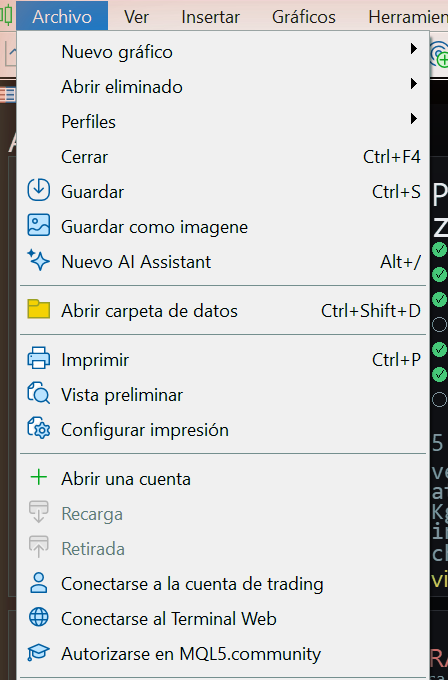
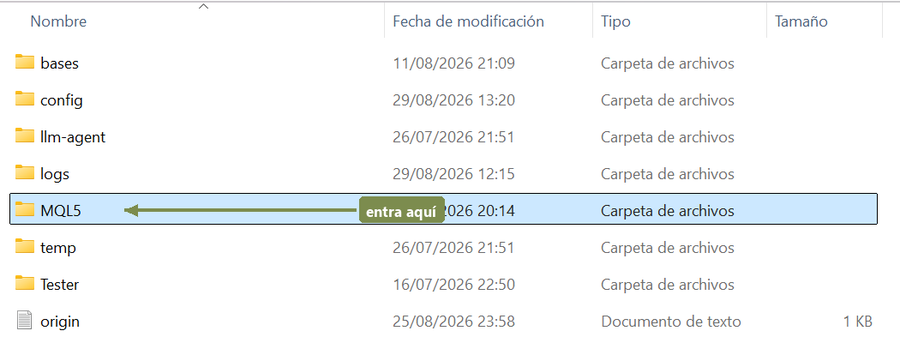
Menu File → Open Data Folder (Archivo → Abrir carpeta de datos). But this time, instead of going into MQL5, go into the Tester folder and then into cache.
2
Take the .opt files
Inside there are files with the .opt extension. Each one corresponds to an optimisation you launched at some point.
Send us the one matching the bot and the period you are auditing. If you don’t know which it is, send whatever is there and we’ll identify them: they carry the expert’s name inside.
None at all? Then you have never optimised that bot on this computer, and this level does not apply. Go straight to level 3, which gives more information anyway.
Level 3 — The optimisation matrix
This is what unlocks the overfitting test, the one that really separates a strategy from a well-chosen coincidence. About ten minutes of setup; after that it runs on its own.
1
Put our file where it belongs
We send you a file called Botospy.mqh. The MT5 folder is hidden somewhere odd in Windows, so don’t go looking for it by hand: MT5 opens it for you.
Menu File → Open Data Folder (Archivo → Abrir carpeta de datos)
Go into the MQL5 folder
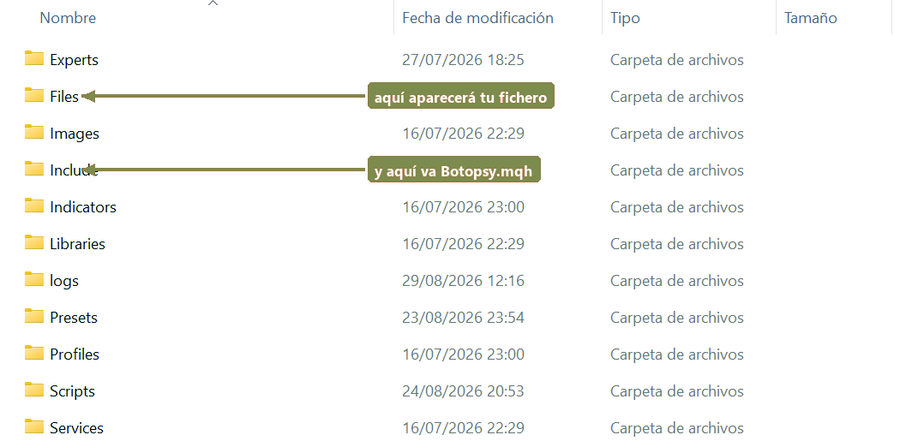
Inside, go into Include
Paste Botospy.mqh there
123
2
Add one line to your bot
Open MetaEditor (it comes with MT5: menu Tools, or the F4 key) and load your bot’s .mq5.
Right at the top you’ll see a block of lines starting with #include. Add ours at the end of that block:
#include <Botospy.mqh>
Save and compile. If it compiles without errors, you’re done.
3
Set up the optimisation
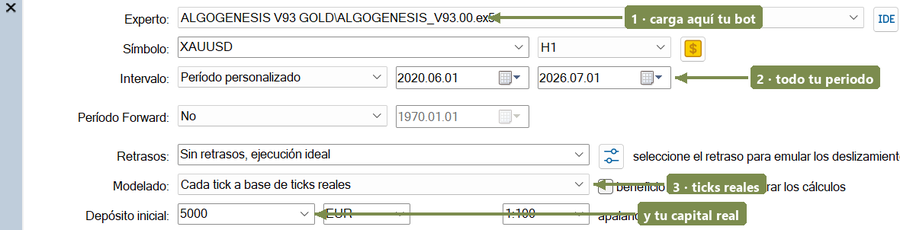
In the Tester, the Settings tab (Configuración). Out of that whole screen you only have to touch four fields; leave the rest as it is.
Your bot. Under Expert(Experto) pick your robot’s file, the same one you always work with.
Your whole period. Under Date(Intervalo), the full dates you used while developing it — not a slice. If you shorten the period you are deciding which part of your own history gets audited, and that is exactly what we don’t want.
Real ticks. Under Modelling(Modelado), the most detailed option. The fast modes invent how price moved inside each candle, and that invention always flatters the result: it skips stops that in reality would have been hit. It is the difference between a test and an illusion.
Your real capital. Under Initial deposit(Depósito inicial), the money you actually intend to trade with. This is not a detail: maximum loss as a percentage is computed against that figure, so an invented deposit gives you back an invented risk.
The one thing you don’t get to choose freely: among the mode options you’ll see “Fast genetic based algorithm” next to “Slow complete algorithm”. The genetic one sounds better because it is far quicker. Don’t pick it. It is quick precisely because it skips combinations: it prunes paths it doesn’t like the look of. And we need to see them all, including the bad ones — those are exactly the ones that tell us whether your bot holds up. Choose the slow complete one, even though it takes longer.
That’s the test configured. The Start button is at the bottom right of the panel — but don’t press it yet: first you have to choose which parameters to try, which is the next step.
12
4
Choose which parameters to try
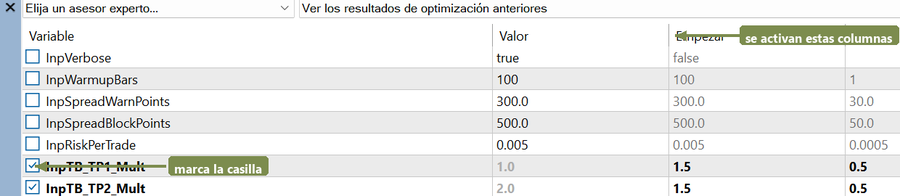
The Inputs tab (Parámetros de entrada). To the left of each row there’s a checkbox; ticking it means “try several values of this one”, and switches on three columns: the lowest value, the increment, and the highest. The last column tells you how many values will come out.
Tick two or three parameters, no more. What matters is the total number of combinations: multiply the “steps” of everything you ticked.
Total combinations
Any good?
Fewer than 20
Falls short
Between 30 and 150
Perfect
More than 300
Adds nothing and takes forever
Do the names look nothing like what we’ve described? That’s normal and there’s a fix. Keep reading just below.
If the names don’t match, you’re not doing it wrong
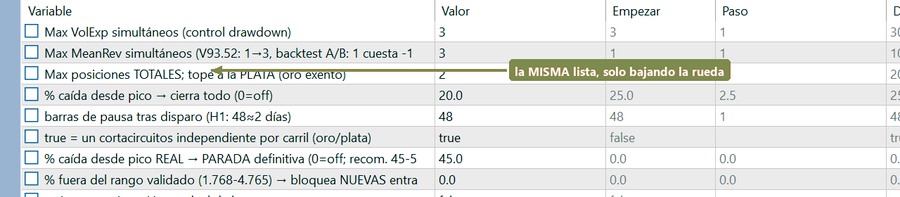
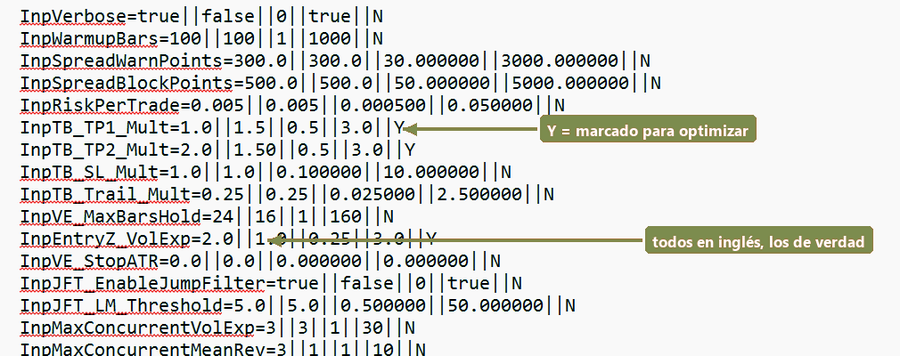
These two images are the same screen, just scrolled with the mouse wheel. At the top the parameters show up as InpVerbose or InpTB_TP1_Mult. Below, as“Max VolExp simultáneos” or“% caída desde pico” — this bot’s author wrote the comments in Spanish, which is exactly the point.
It is neither your mistake nor ours: when the bot’s author writes a comment next to a parameter, MT5 shows the comment and hides the real name. And since every bot writes it in its own language — plenty come in Russian or English — what you see on your screen may look like nothing at all.
That is why we will never tell you “tick InpEntryZ”: that text may not exist anywhere on your screen. We’ll tell you where it is.
The thirty-second trick
And if you do need the real names, there is a way to get them all at once:
Click on the Variable column.
Press Ctrl+C. Careful: there is no “Copy” in the right-click menu, it has to be the shortcut.
Open Notepad and paste with Ctrl+V.
Out come all the real names, and as a bonus the full range of each one:
name = value || start || step || stop || ticked?
So at a glance you also see which parameters are ticked for optimisation: they are the ones ending in Y. It is the quickest way to check you ticked what you meant to before launching an optimisation that runs for hours.
5
Launch it and watch the first ten minutes
Press Start. You don’t have to watch the whole thing, but stay for the first ten minutes.
The failure that shows up most is a disk space error, and always at the start: MT5 prepares the price data on every core at once and takes up a fair amount all at once. If you see it, stop, free up space and launch again. If ten minutes pass and it’s going fine, you can leave it alone.
6
Send us the file
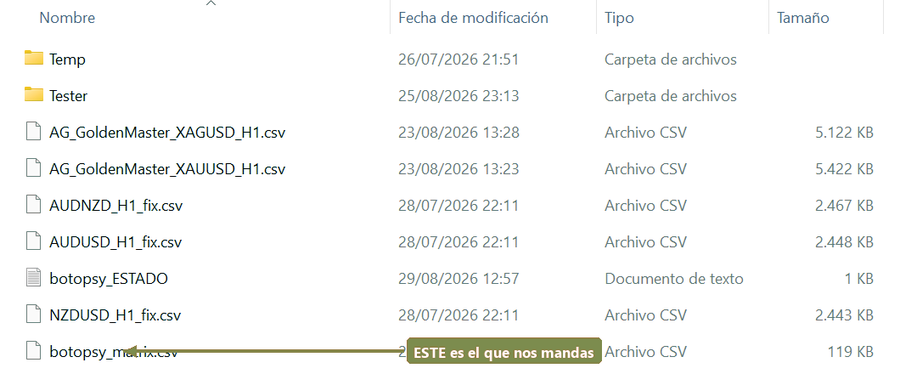
When it finishes, go back to File → Open Data Folder(Archivo → Abrir carpeta de datos), into MQL5, and this time into Files. There it will be:
botospy_matrix.csv
That’s the one we need. We take care of the rest.
Separately: the price history of your instrument
This is not another level and it does not depend on the previous ones: it can be sent alongside any of them, and it is a file your MT5 already has.
With it we check something no other test can: whether the prices your bot claims to have entered at really existed at that moment. We take each trade and look at what actually traded that hour. If a price falls outside what the market recorded, that trade cannot have executed the way it is declared.
It is the one finding that admits no argument, because it is not our analysis against your platform: it is your report against the prices the market recorded.
1
Export the bars for your instrument
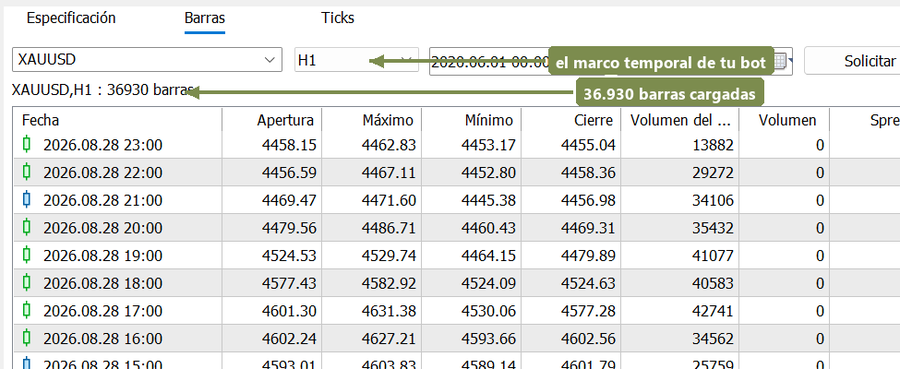
Menu View → Symbols (Ver → Símbolos, or Ctrl+U), find the instrument your bot trades and go to the Bars tab (Barras).
Choose the same timeframe your bot uses (H1, M15…). Don’t grab M1 “just in case”: it’s millions of rows and adds nothing if your bot works on another scale.
Set the same dates your backtest covers.
Press Request (Solicitar). Until you press it the table looks empty — you haven’t done anything wrong.
With the table loaded, use the export button to save it to a file.
Out comes a text file of several megabytes. That’s normal.
2
Check it’s from the same broker
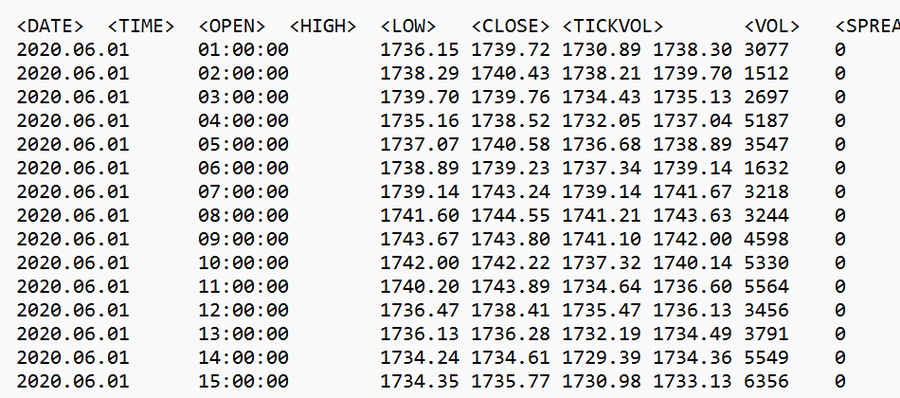
Open it in Notepad to confirm it looks right: a header with <DATE>, <TIME>, <OPEN>, <HIGH>, <LOW> and <CLOSE>, and below it one row per hour.
Important: it has to be from the broker you ran the backtest with. Prices differ between brokers, and if they don’t match we detect it and tell you, rather than handing you a wrong result.
Same with the clock: if your history comes from another server on another time zone, we detect it and correct it ourselves. You don’t have to do anything.
What exactly you are sending
It’s normal to want to know before sending anything. The file carries one row per combination you tried: that combination’s month-by-month result and the numeric values of the parameters it used.
It does not carry your code, your entry logic, or anything that would let someone reconstruct how your bot decides. They are result numbers.